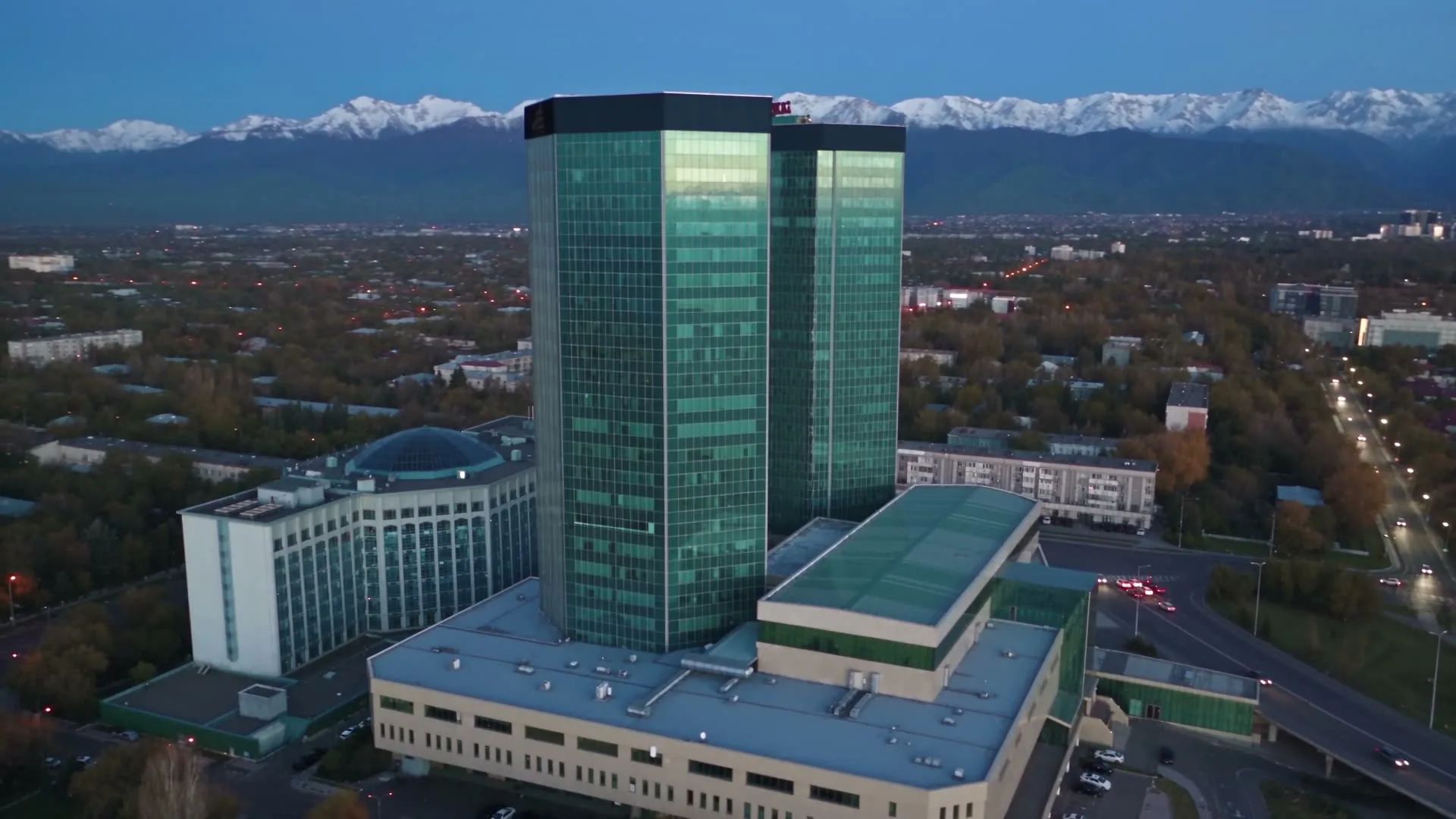
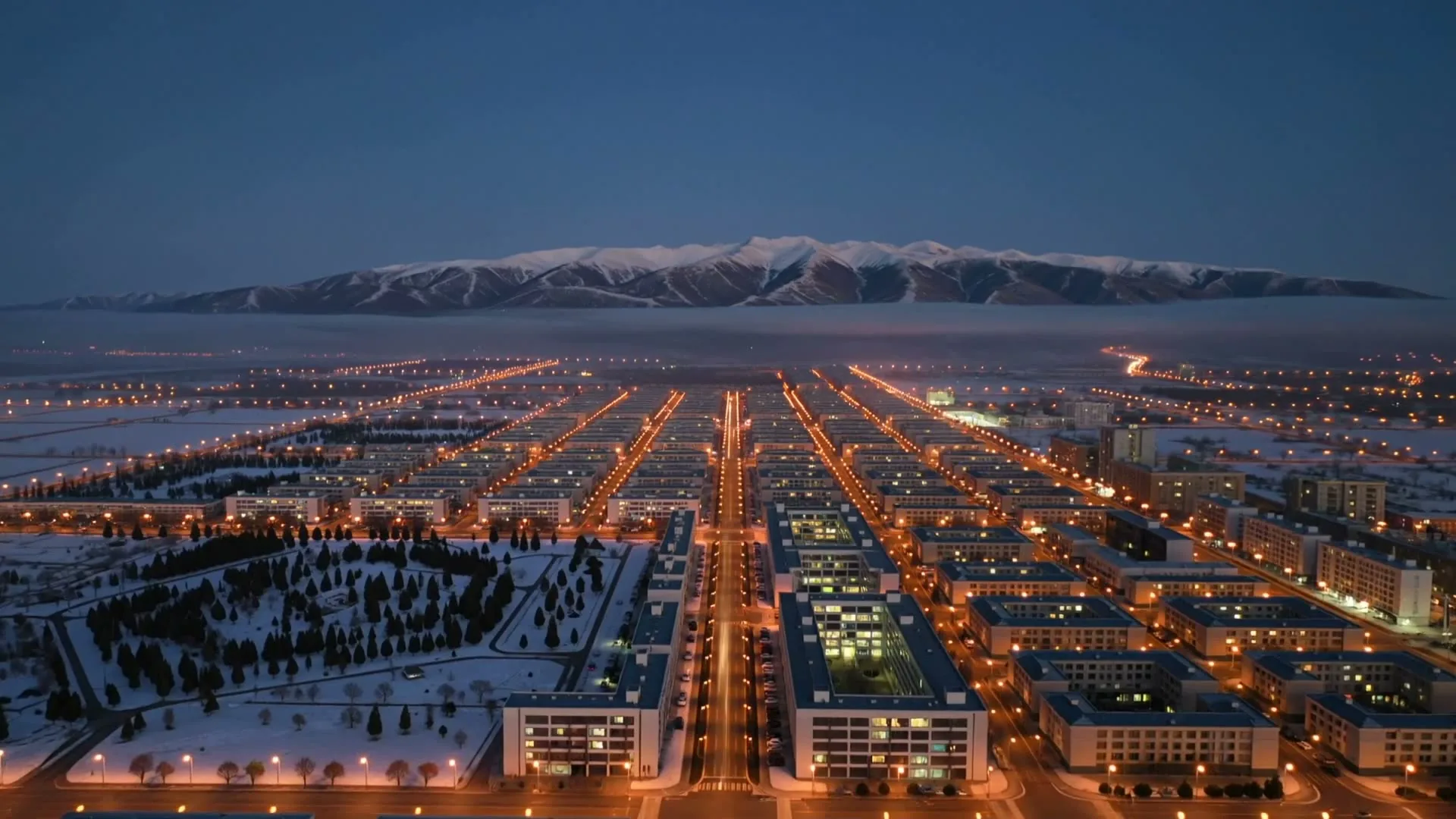
Video analytics for your business.

Watch your cameras, find the moments you need in recorded video and review events. Kuzet AI is a video analytics application for businesses in Kazakhstan.

Explore the interface

Footage is illustrative

A single frame rarely tells the whole story. You need the recording and the context of what happened on site. In Kuzet AI, you find the moment in the archive and work with the video, events and site metrics together.

Explore the application

Choose a scenario and explore the related events in the log.

Kuzet AIAll sitesAlmaty
What the AI highlights

Interface demonstration. Footage is illustrative; events and figures are examples.

  • Video archive

    Return to site recordings and check what happened before and after an event.

  • Video search

    Find relevant moments in the archive and open the recording for a closer look.

  • Events and notifications

    Work with events in the application and get notifications when something needs attention.

  • Reports

    Review metrics for a period and use them to assess activity on your site.

Our clients’ sites

A production site and an office building have different needs. These sites provide the setting for the application scenarios shown here.

  • Asyl-LTD

    Aksukent, Turkestan region

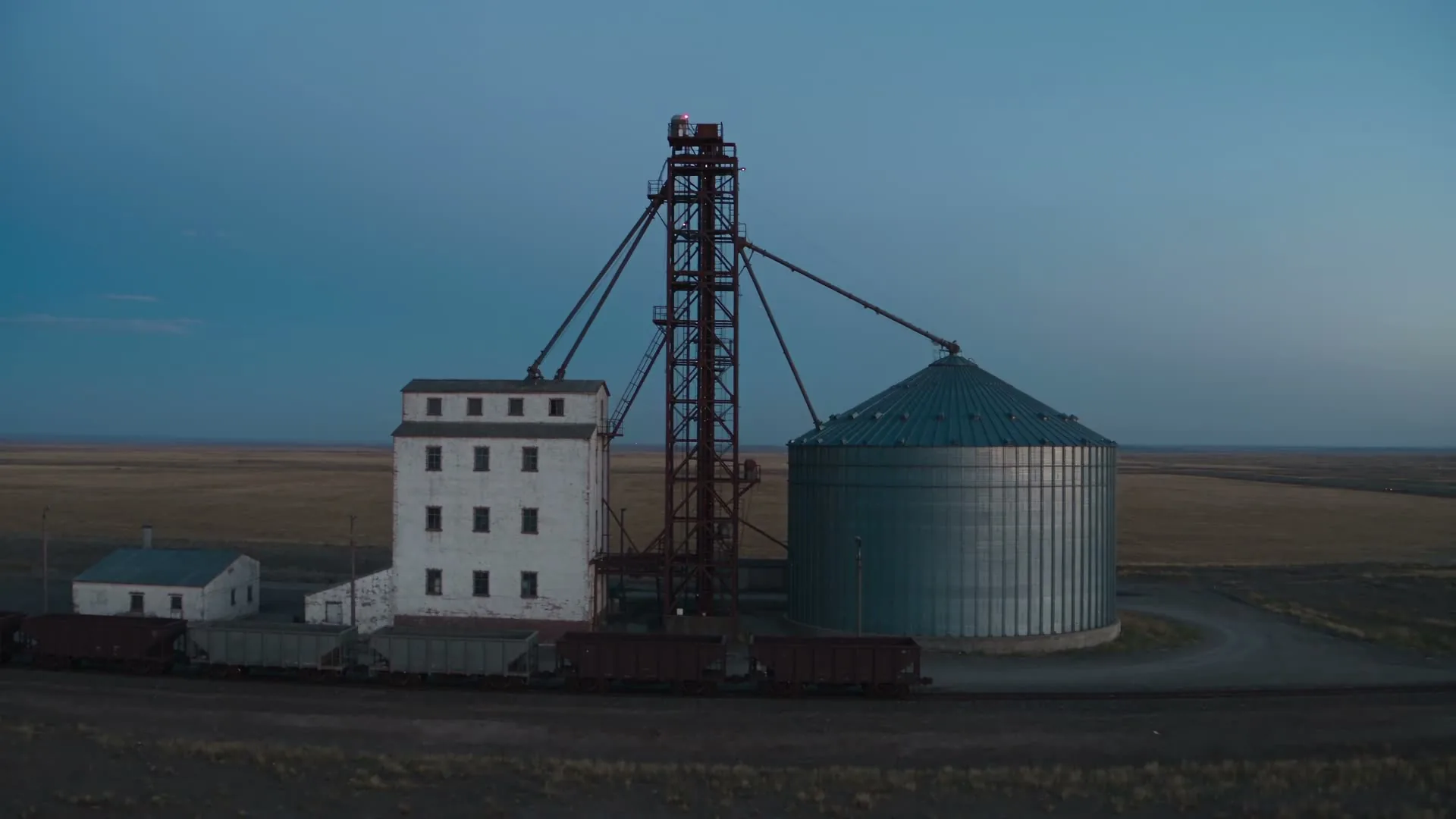
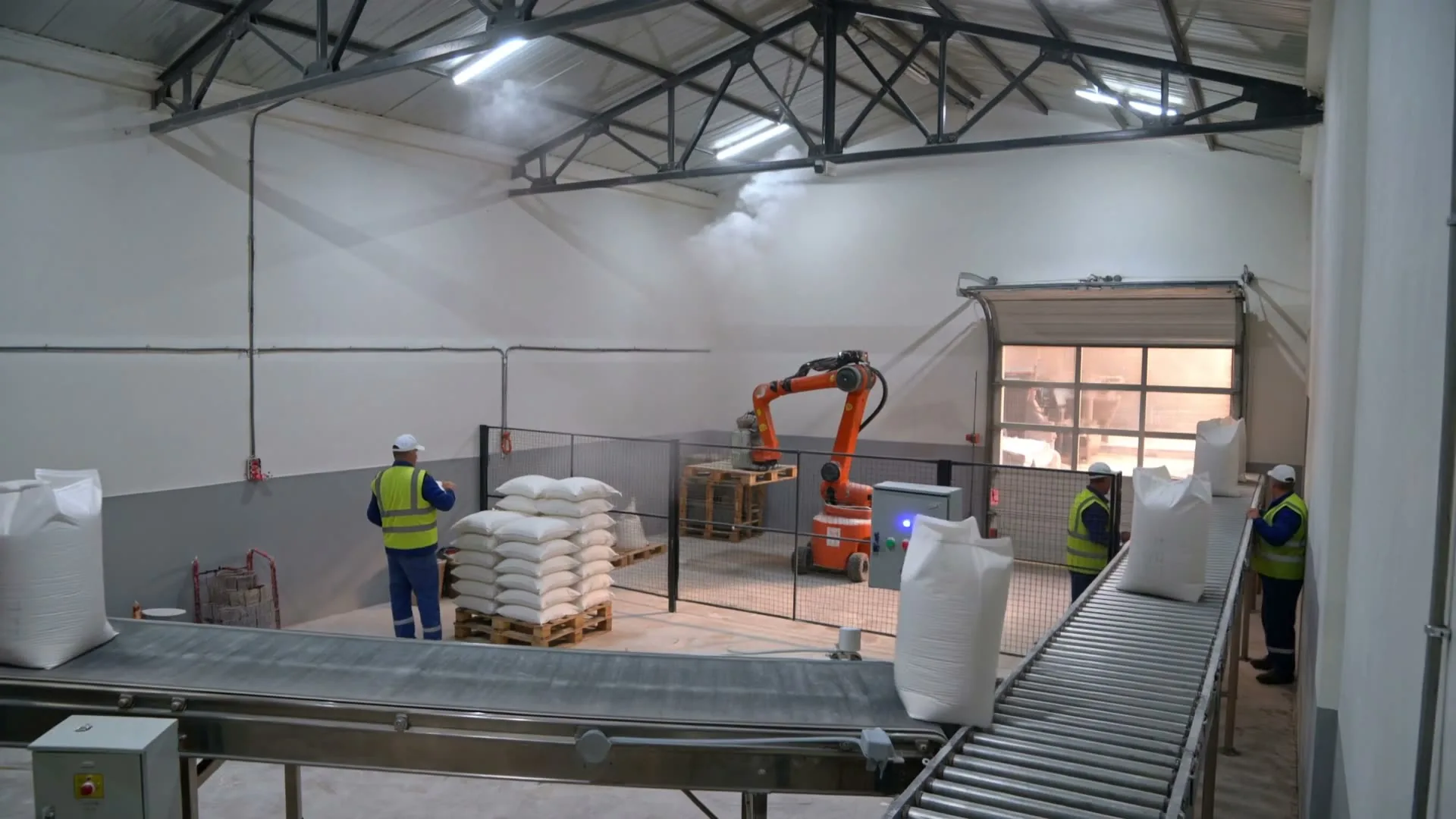
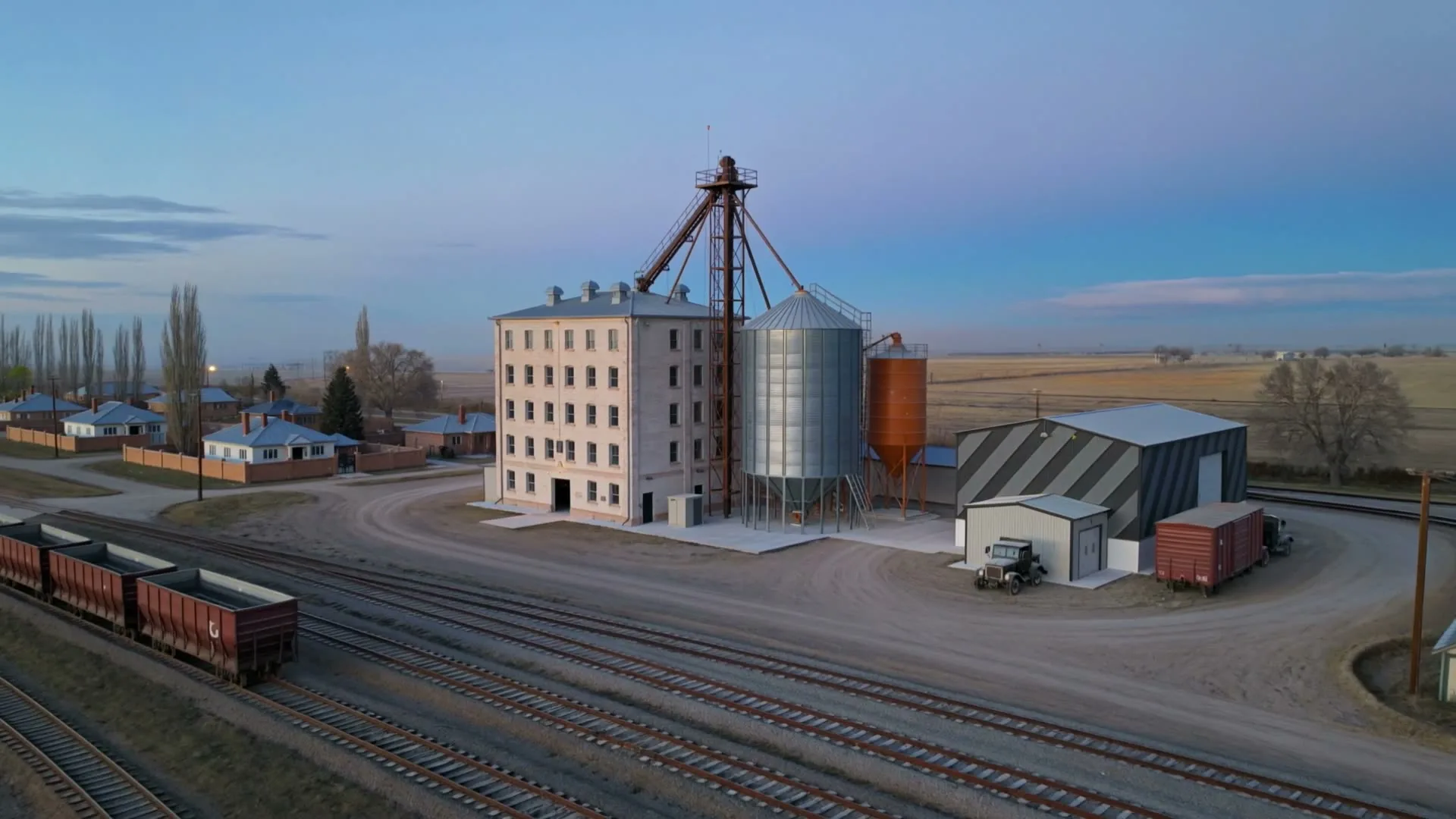
    A flour mill in Aksukent. The example follows a packing line and the recording of finished output.

    Tasks Production and shift metrics

  • PVD.KZ

    Tuimebayev village, Almaty region

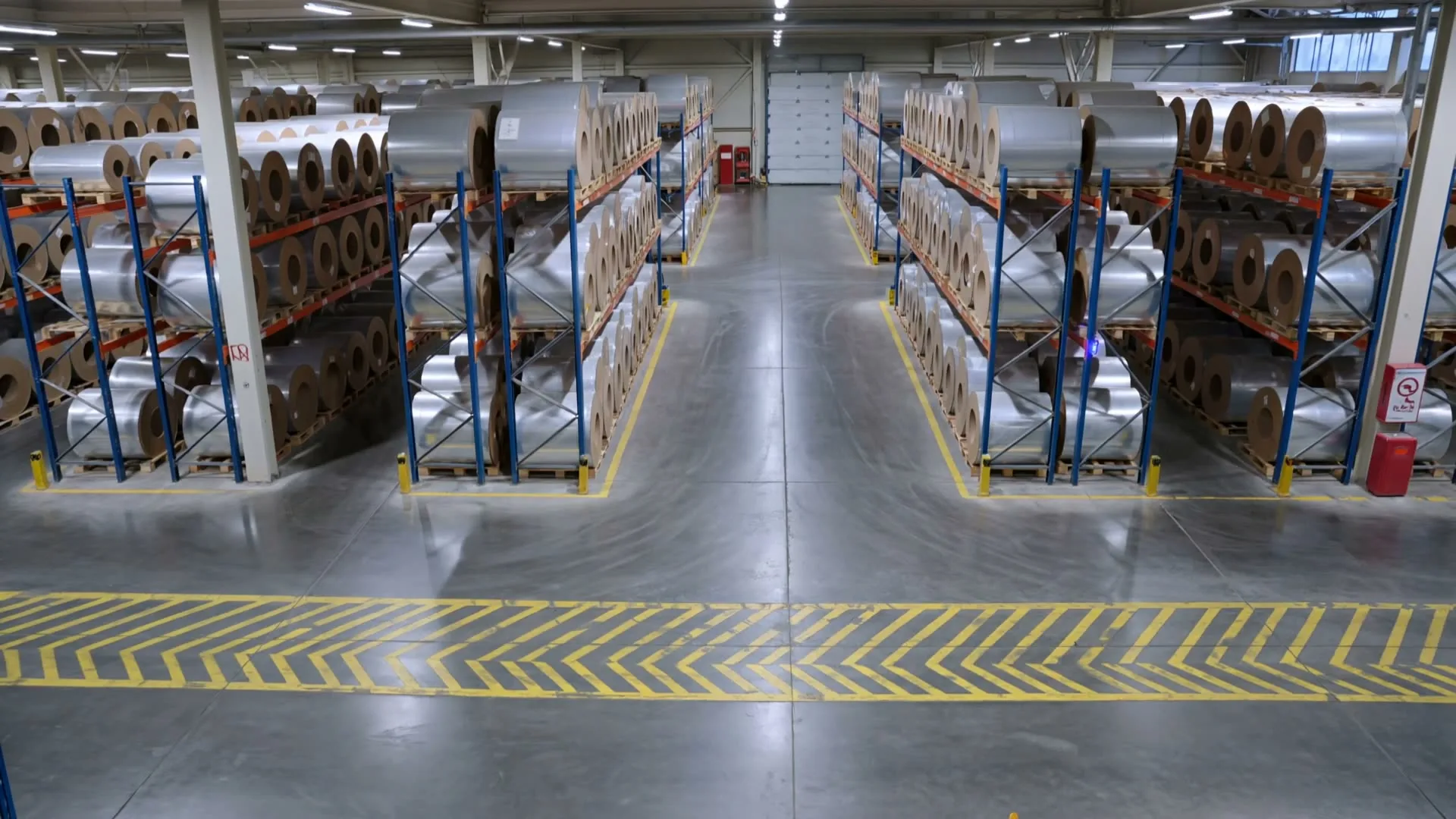
    A polyethylene film factory with a roll warehouse. The scenario focuses on people and vehicles moving around the site and the events they create.

    Tasks Warehouse safety and perimeter

  • Kaylas

    Almaty

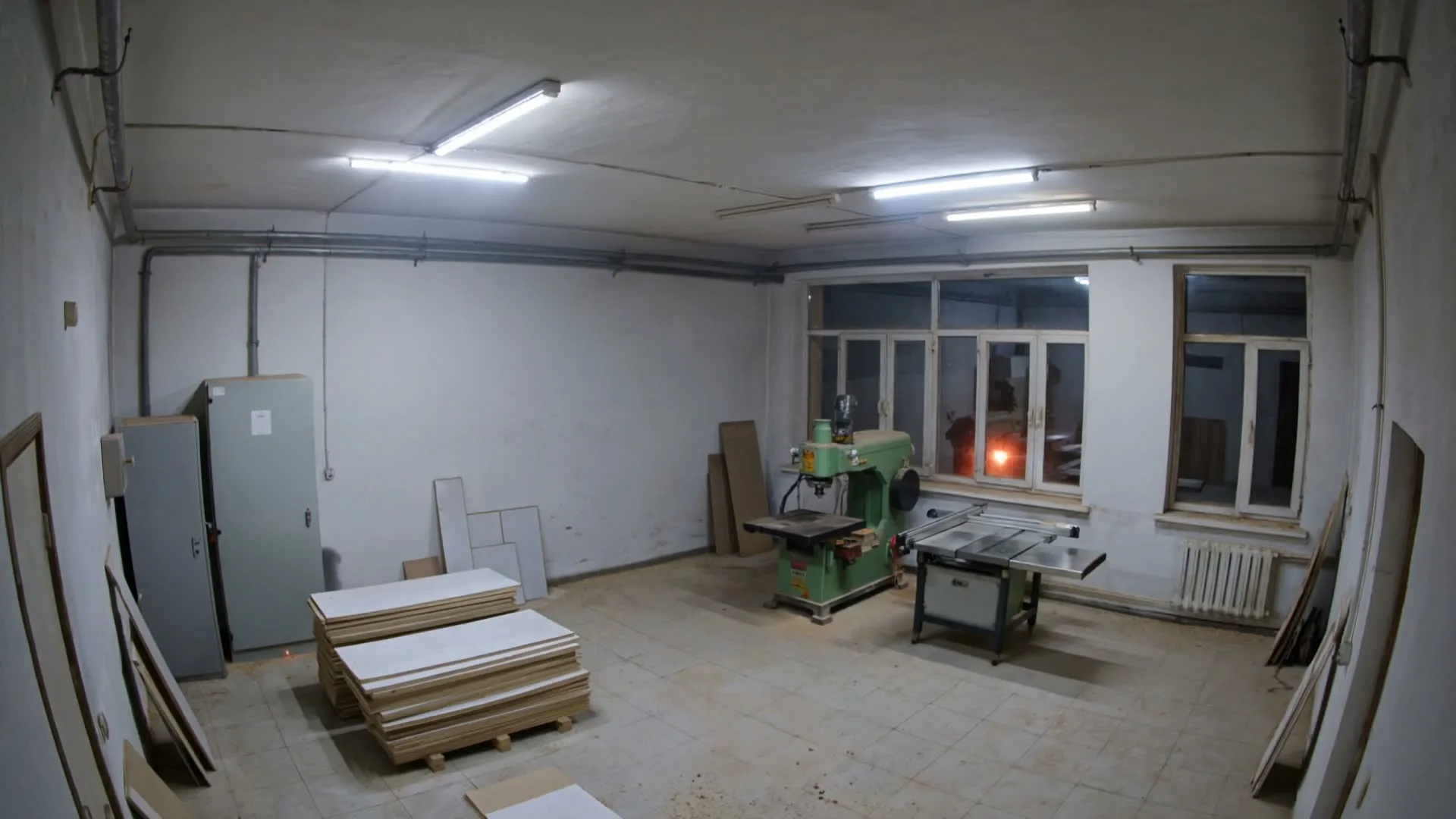
    A furniture production site in Almaty. The scenarios show workshop video and events that need the team’s attention.

    Tasks Workshop monitoring and safety

  • SmArt.Point

    Almaty Towers, Almaty

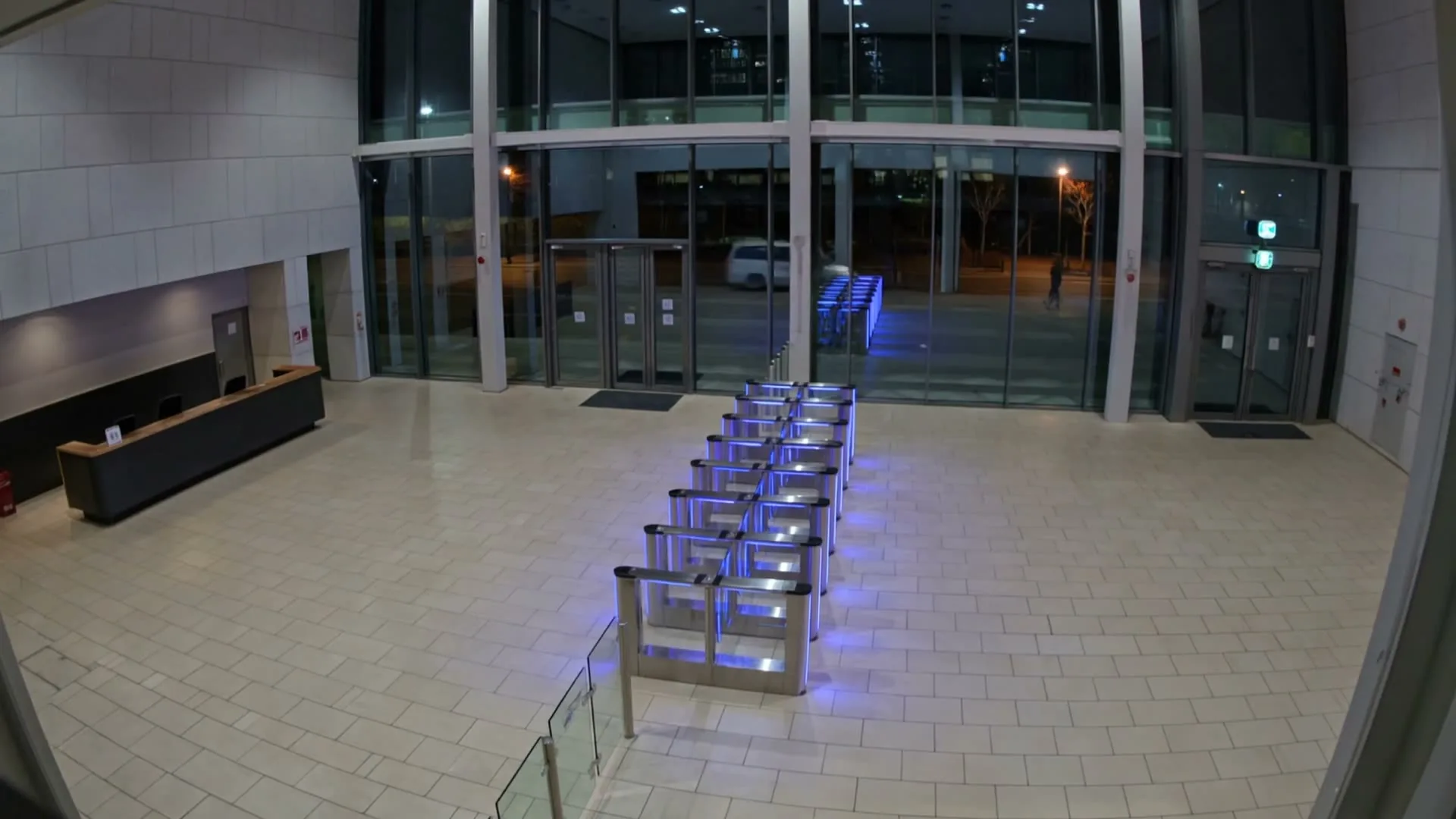
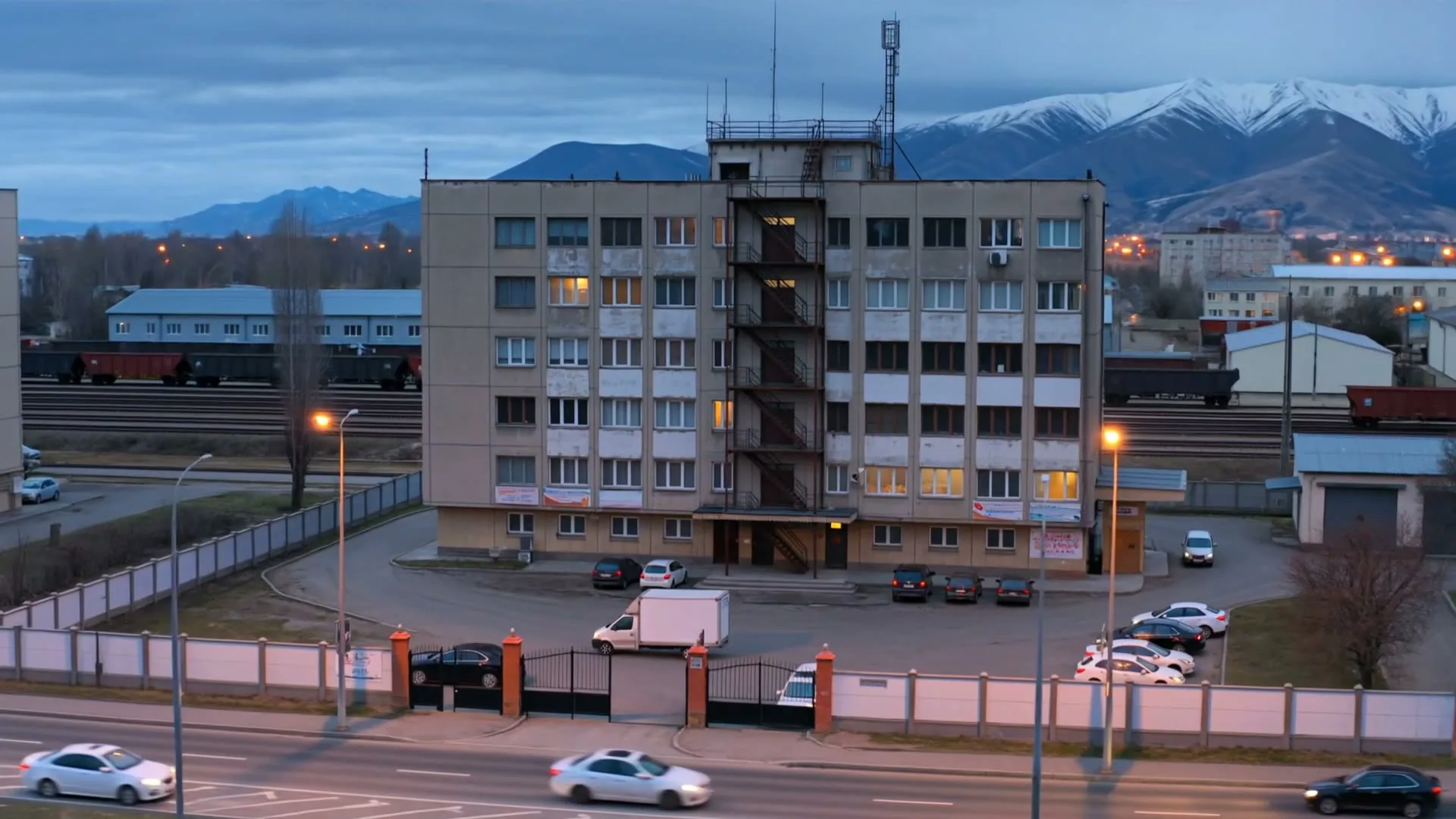
    A coworking space in Almaty Towers. The example brings building and parking cameras together for a view of the site.

    Tasks Building and parking overview

Footage is illustrative. Descriptions give site context, not measured results.

From camera to event to review

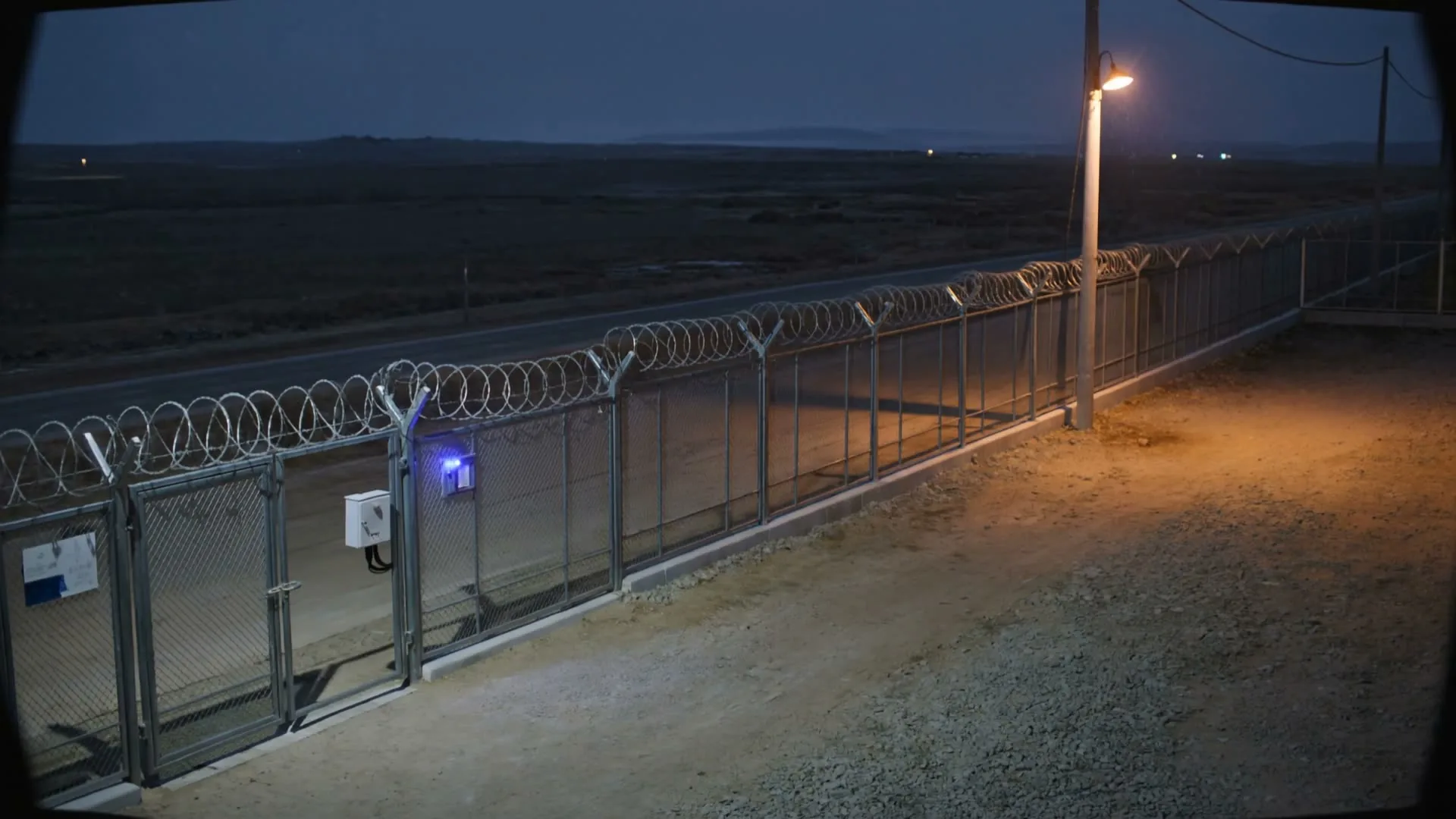
An illustrated scenario: a person by the fence at 02:14. Follow the video as it becomes an event the team can work with.

  1. View the video

    The camera shows part of the perimeter. In this example, a person stands by the fence while a dog moves through the yard.

    CAM 19North perimeter02:14:07
    Footage is illustrative
  2. Identify the event

    Video analytics marks the person in the selected area. The event carries context: its camera, location and time.

    CAM 19North perimeter02:14:07
    • A person, not an animal
    • Outside the fence, in the perimeter zone
    • 02:14, outside working hours
  3. Review the recording

    Open the event in the application and find the moment in the archive. Check the video to see what happened before and after it.

    Kuzet AIEvent

    Person by the perimeter

    Camera: north fence, CAM 19

    Time: 02:14:07

    EventOpen archive

  4. Read the report

    Reports bring events and metrics together for a period. This example shows a night event alongside the results of a production shift.

    Kuzet AI

    30 September, 08:00

    Shift overview

    Perimeter, example event

    A person appeared by the north fence at 02:14. The event is linked to the recording from camera CAM 19.

    The video helps the team review the circumstances.

    Production, Asyl-LTD bagging line

    17,480 sacks bagged over the night shift, 97% of plan. The line stood idle for 19 minutes between 01:00 and 03:00.

    Events and metrics are available in the application’s reports.
    Example report with illustrative figures. These scenarios show the application, not measured client results.

Start with your own site

Choose a task you want to solve with video. We will walk through the application, then agree on the connection and evaluation for your site.

  1. Step 1

    Define the task

    Discuss the site, the team’s work and what you want to see in the application.

  2. Step 2

    Explore the application

    See cameras, video search and event review in action. Look at reports and notifications for your scenario.

  3. Step 3

    Plan the connection

    Check the equipment and camera access. Agree on the scope, data placement and schedule together.

  4. Step 4

    Evaluate on site

    Try the selected scenario on your video and compare the result with the agreed task. Use the findings to discuss the next step.

What to bring to the conversation

Start with a description of the site and the task. We will work through the technical details together.

  • Your scenario

    What you need to monitor or find in the video, and who will work with the result.

  • Camera information

    Camera or recorder models, approximate numbers and locations.

  • A site contact

    Someone who can help explain the equipment and working processes.

Scope and timing are agreed before connection

Video analytics for the work on your site

From production to safety, review events with their video and put the metrics to work. We select scenarios around the tasks on your site.

Production

A counting scenario on a packing line. Footage is illustrative.

Counting output connects activity on the line with shift metrics. Review the result in the application and return to the video to investigate a change.

This example follows a flour mill packing line: the camera watches the sacks, with the count shown alongside the video.

  • Perimeter

    A person by the fence after hours gives the team an event to check. Open the related video and review what happened on site.

  • Fire and smoke

    In this scenario, video analytics highlights signs of smoke in a workshop. The event draws attention to the area so the team can review the recording.

    An additional monitoring scenario that complements the site’s certified fire alarm system.

  • Workplace safety

    A forklift close to a worker or a person without protective equipment: review these moments on video and use them in site safety discussions.

  • Buildings and parking

    Lobbies, floors and parking areas in one application. Open the cameras for the area you need and review events using the recordings.

From your cameras to work in the application

Kuzet AI brings video and analytics into one workspace. Before connecting a site, we check the equipment and agree on a configuration with your team.

  1. Cameras on your sitescompatibility and connection checked
  2. Kuzet AI applicationvideo, archive and events
  3. Your teamevent review and reports
Cameras

Start with the equipment you already have.

We check camera and recorder models, video stream access and the network. The connection approach follows from that check.

Sites

One workspace for cameras across your sites.

Open the site you need and view its cameras. Events help you identify the recording to return to.

Archive and search

Find the moments you need in the video archive.

Video search helps you reach the relevant recording. View the event and review its context.

Reports and notifications

Bring events and metrics into the team’s work.

The application includes reports and notifications. Scenarios and notification workflows are agreed during setup.

Data placement

Storage conditions are agreed before connection.

We discuss placement, recording retention and staff access with your team, and document these conditions for the selected configuration.

Tell us about your site and send the equipment models. We will discuss how to connect the cameras and organise the team’s work.

About the application and setup

Have a question about your site? Message us on Telegram.

Message on Telegram
What can I do in Kuzet AI?

View cameras, work with the archive and search the video for relevant moments. The application also includes events, reports and notifications for your team.

Can we work with several sites?

Yes. The application brings cameras from different sites into one workspace. Open the site you need and work with its video and events.

Will our existing cameras work?

First we check camera or recorder models and video access. We propose a connection approach based on that check, without assuming equipment must be replaced.

How do I find a moment in the archive?

Kuzet AI includes video search. In the demo, we show how to find a recording and review the context of an event.

Are reports and notifications included?

Yes. Reports help the team work with events and metrics, while notifications draw attention to the relevant events. Notification scenarios are discussed during setup.

Where will recordings be stored?

We agree on data placement and retention before connection. These depend on the selected configuration and your site’s requirements.

What does connection cost?

We discuss pricing after learning about the site and the scenarios you need. The proposal describes the work and the terms for using the application.

How do we get started?

Request a demo and tell us about your task. We will show the application, then discuss the equipment and an evaluation of your selected scenario on site.